

Invalid URL
Wednesday, March 11, 2026
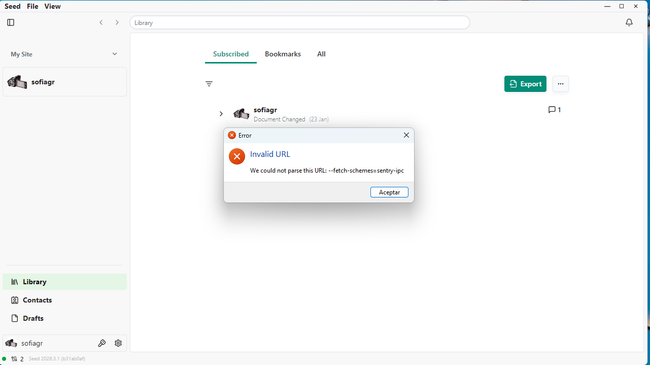
After a day of installation on a laptop running Windows 11, a window appears displaying the error 'Invalid URL'. It allows access on the second attempt, but the pop-up remains. There do not appear to be any further issues.
Latest version not automatic
Tuesday, March 13, 2026
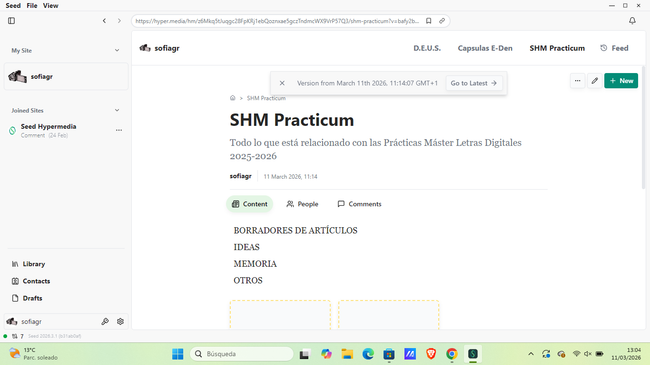
When I access one of my latest documents, it does not automatically load the latest version. It seems to have remained on the penultimate version, despite having published the document with the latest version.
STATUS: closed.
SOLUTION: manually enable the option to always show the latest version.
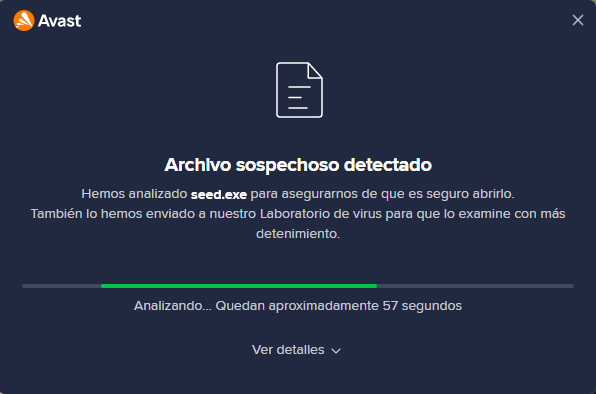
Suspicious file warning (seed.exe)
Tuesday, March 13, 2026
» Related to Invalid URL
STATUS: completed.
SOLUTION: pending. [This is a known issue. Sorry this is happening to you! This is likely you have multiple Seed processes running in your machine. The best solution now is to go to the administrator processes of your machine, (Ctrl + Alt + Delete) check the list of processes related to seed and kill them all. after this you should be able to open the app without this error. We are working on the fix, hopefully we can have a fix soon. I will keep you posted].
Cannot scroll down on pricing page after clicking "Publish to Web Domain" or "Free Hosting" buttons
Tuesday, March 17, 2026
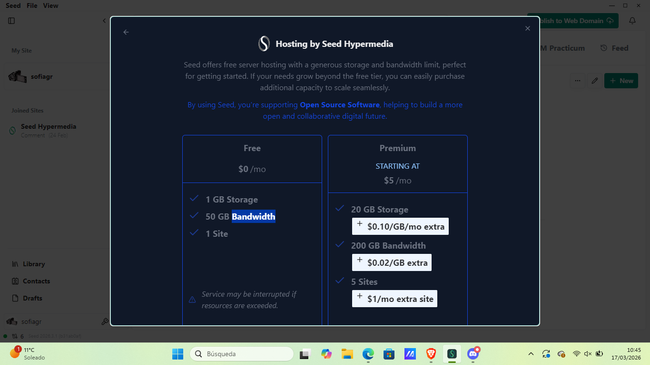
When clicking on the "Publish to Web Domain" button and the "Free Hosting by Seed Hypermedia" button, a pricing plans page opens. However, it is not possible to scroll down to view the rest of the content. There is no scrollbar visible, no button to continue, and the keyboard arrow keys do not allow scrolling either.
Steps to reproduce:
Open the desktop app on Windows 11.
Click on the "Publish to Web Domain" button and the "Free Hosting by Seed Hypermedia" button.
A new page or section with pricing plans appears.
Attempt to scroll down using the mouse wheel, scrollbar, or keyboard arrow keys.
Notice that scrolling is not possible — the content appears cut off or stuck at the top.
Expected behavior:
The user should be able to scroll down to view all available pricing plans and related information.
Actual behavior:
The page/section is not scrollable, making it impossible to access content further down.
Environment:
App version: Seed 2026.3.1.
OS: Windows 11
Device: Desktop
STATUS: closed.
Clicking on a mention notification redirects to the site homepage instead of the specific mention
Friday, March 20, 2026
When accessing the notifications section and clicking on a mention notification, the expected behavior is to be redirected to the exact location where the mention occurs. However, the app only redirects to the official homepage of the site where the mention was made, not to the specific mention itself.
Steps to reproduce:
Open the desktop app and go to the notifications section.
Locate a mention notification.
Click on the notification.
Observe where the app redirects.
Expected behavior:
The app should redirect to the specific mention within the document or site, allowing the user to see the context of the mention.
Actual behavior:
The app redirects only to the official homepage of the site, not to the mention itself.
Environment:
App version: Seed 2026 3.2.
OS: Windows 11
Device: Desktop
Error when copying a site link: "could not get 2p2 client peer with incompatible hypermedia protocol version"
Monday, March 23, 2026
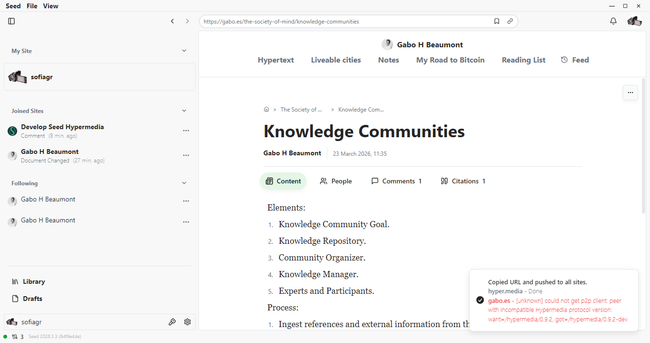
When copying a link from a site within the desktop app, an error message appears: "could not get 2p2 client peer with incompatible hypermedia protocol version." Despite the error, the link is successfully copied to the clipboard. However, the appearance of this error message is concerning and may indicate an underlying issue.
Steps to reproduce:
Open a site within the desktop app.
Attempt to copy the link (e.g., using the copy link option).
Observe that the error message appears.
Check the clipboard — the link has been copied successfully.
Expected behavior:
The link should be copied successfully without any error messages.
Actual behavior:
The link copies successfully, but an error message related to "2p2 client peer" and "incompatible hypermedia protocol version" is displayed.
Environment:
App version: 2026.3.3
OS: Windows 11
Device: Desktop
Search feature (Ctrl+F) lacks word count indicator and navigation arrows behave inconsistently
Monday, March 23, 2026
When using the search feature (Ctrl+F) within a site, two issues have been observed. First, there is no indicator showing how many times the searched word appears in the text. Second, the navigation arrows (up and down) do not always work correctly. In a specific page where the word appeared twice, pressing the arrows either failed to jump to the next occurrence or got stuck on the last occurrence without cycling back to the first one as expected.
Steps to reproduce:
Open a site in the desktop app.
Press Ctrl+F to open the search bar.
Search for a word that appears multiple times in the text.
Observe that no counter (e.g., "2 results") is displayed.
Use the up and down arrows to navigate between occurrences.
Notice that the navigation may fail to move to the next occurrence, or when reaching the last occurrence, it does not cycle back to the first.
Expected behavior:
The search interface should display a counter indicating how many times the word appears (e.g., "02/05").
The navigation arrows should move smoothly between all occurrences and cycle back to the first when pressing "down" after the last one, or to the last when pressing "up" after the first.
Actual behavior:
No word count indicator is shown.
Navigation arrows are inconsistent: sometimes they do not jump to the next occurrence, and they do not cycle through results in a loop.
Environment:
App version: 2026.3.3.
OS: Windows 11
Device: Desktop
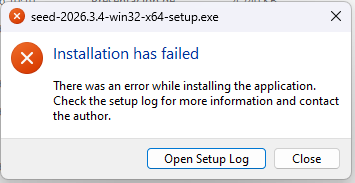
App crashes and uninstalls itself after attempting to access site — "installation has failed" error when reopening
While trying to access my own site, the page got stuck loading. I attempted to press the edit button, but the loading continued.
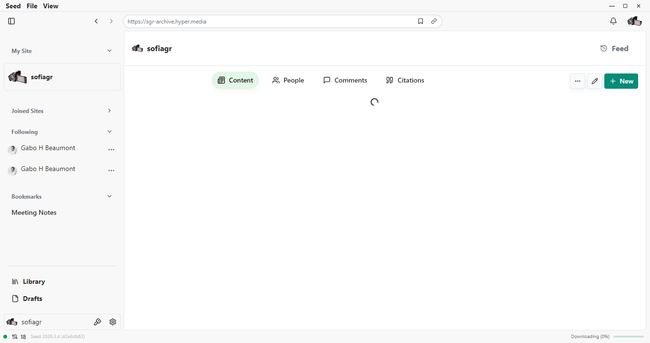
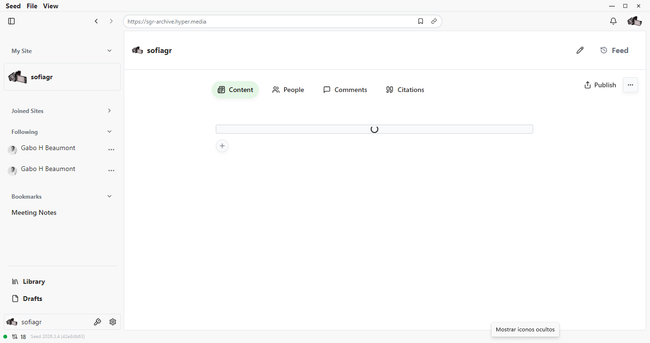
Suddenly, the application closed and the desktop shortcut disappeared. When trying to reopen the app, the following error message appeared: "installation has failed." It is important to note that I had already installed the latest version and was able to access it without issues prior to this incident.
Steps to reproduce
Open the desktop app and attempt to access a site.
Observe that the page gets stuck loading.
Press the edit button while the page is still loading.
The app suddenly crashes and closes.
Notice that the desktop shortcut is no longer present.
Try to reopen the app.
The error message "installation has failed" appears.
Expected behavior:
The site should load without issues, and the app should remain stable. The installation should not be affected or removed.
Actual behavior:
The app crashes, the desktop shortcut disappears, and attempting to reopen the app results in an "installation has failed" error, suggesting the app was uninstalled or corrupted.
Environment:
App version: Latest version (already installed and working previously)
OS: Windows 11
Device: Desktop
Site fails to update when including a query block
When attempting to update a site that includes a query block, the update does not go through and fails. The changes are not saved, and the site remains unchanged.
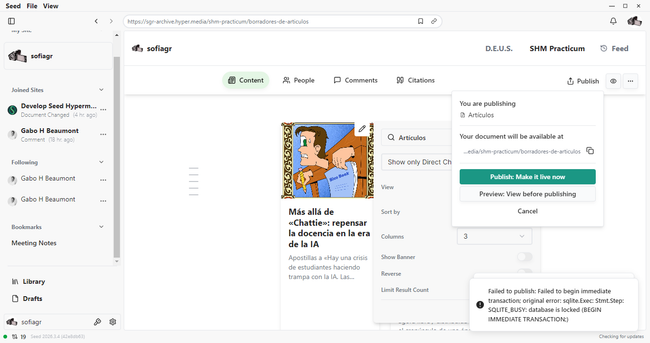
Steps to reproduce:
Open a site in the desktop app.
Add or modify a query block within the site.
Attempt to update/publish the site.
Observe that the update fails and the changes are not applied.
Expected behavior:
The site should update successfully, including the query block changes.
Actual behavior:
The update fails, and the site remains unchanged.
Environment:
App version: 2026.3.4.
OS: Windows 11
Device: Desktop
Pasted link jumps into middle of previous sentence instead of cursor position
Tuesday, April 21, 2026
When pasting a link after a paragraph, the link is inserted in the middle of a previous sentence instead of at the intended cursor position. Even though the cursor is clearly placed after the paragraph, the paste operation does not respect the cursor location.
Steps to Reproduce
Write a paragraph ending with a sentence.
Place the cursor clearly after the paragraph (e.g., at the beginning of a new line or after a line break).
Copy a link (e.g., from a browser).
Paste the link.
Observed result: The link appears in the middle of a previous sentence within the paragraph, not after the paragraph.
Expected Behavior The link should be pasted exactly where the cursor is placed — after the paragraph, not inside a previous sentence.
Environment: App version: 2026.4.3. OS: Windows 11 Device: Desktop
Cannot copy and paste images into a site as previously possible
Monday, May 4, 2026
[Video to be uploaded shortly due to the mentioned error]
I am no longer able to copy and paste images into a site, which worked fine before. The issue occurs on Windows 11 with program version 4.9. Previously, I could paste images directly (e.g., from clipboard or screenshot), but now the paste operation does nothing.
Steps to Reproduce
Open the site in the program.
Copy an image (e.g., take a screenshot or copy an image from another app).
Try to paste the image into the site (e.g., using Ctrl+V or right-click > Paste).
Observed result: The image does not appear. Nothing happens.
Expected Behavior
The image should be pasted into the site as it did before, appearing correctly at the cursor position.
Debug Info
OS: Windows 11
Program version: 4.9
Finding document after comment mention takes longer than usual
Monday, May 11, 2026

Article shows as "draft" in card view even though it is published and unchanged
Friday, May 22, 2026
Problem I published an article/site within the "Articles" section of my page. After publishing, I made no changes whatsoever. Later, when I went back to the Articles section to view the card, the article incorrectly appears as being in "draft" mode.
When I open the article to check if something was left as a draft or unpublished, everything looks correct — there are no changes and the article shows as published. However, the draft status persists in the card view.
Steps to Reproduce
Publish an article/site within the Articles section of your page.
Make no changes after publishing.
Navigate back to the Articles section.
Look at the card for the published article.
Observed result: The card displays the article as being in "draft" mode.
Open the article to inspect its status.
Observed result: The article shows no pending changes and appears as published. No draft or unpublished content is found.
Expected Behavior The card should correctly display the article as "published" since no changes were made after publication and the article remains in a published state.
Debug Info OS: Windows 11 Program version: 5.4
Desktop app crashes during update installation — update loop after fourth attempt (version 5.4 → 5.5)
Problem
I have tried installing the new update four times, but the desktop app keeps closing before the installation completes. When I reopen the app, it prompts me again to download and install the new version, creating an endless update loop. The installation never finishes successfully.
Steps to Reproduce
Open the desktop app.
Receive the prompt to download and install the new version.
Begin the installation process.
Wait for the installation to complete.
Observed result: The app closes/crashes before the installation finishes.
Reopen the app.
Observed result: The app again prompts to download and install the new version, as if no update was applied.
Repeat steps 2–5.
Observed result: The issue persists across all four attempts.
Expected Behavior
The update should install completely without crashing. After a successful installation, reopening the app should reflect the new version, and no further update prompts should appear.
Debug Info
OS: Windows 11
Current version: 5.4
Target version: 5.5

Do you like what you are reading? Subscribe to receive updates.
Unsubscribe anytime