


Design
Video prototype
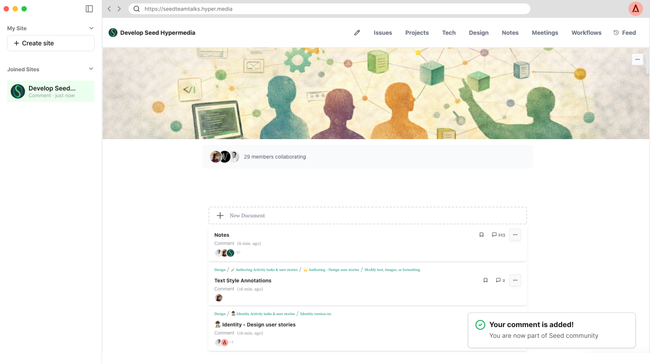
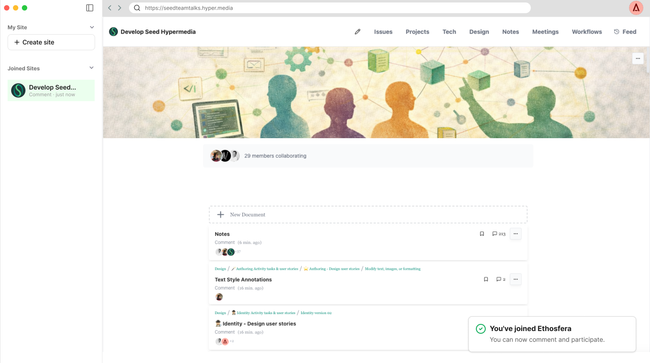
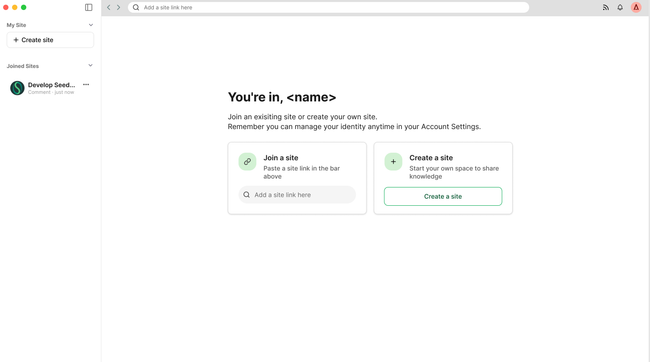
Screens by steps
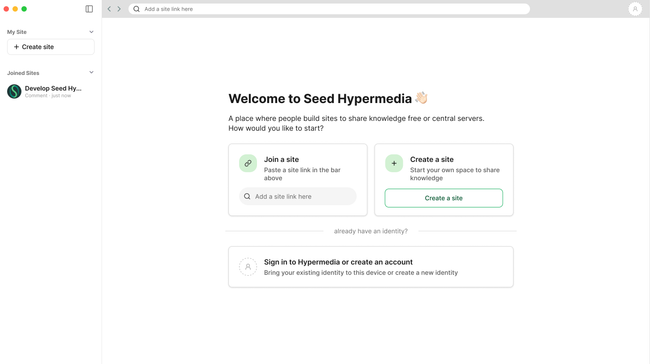
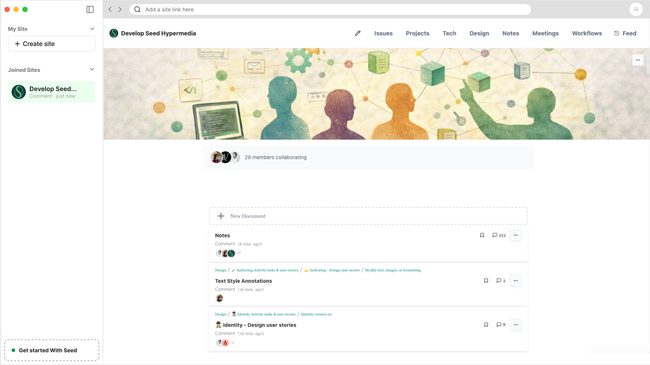
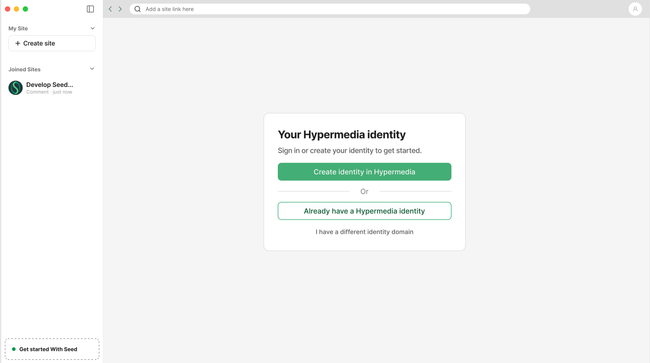
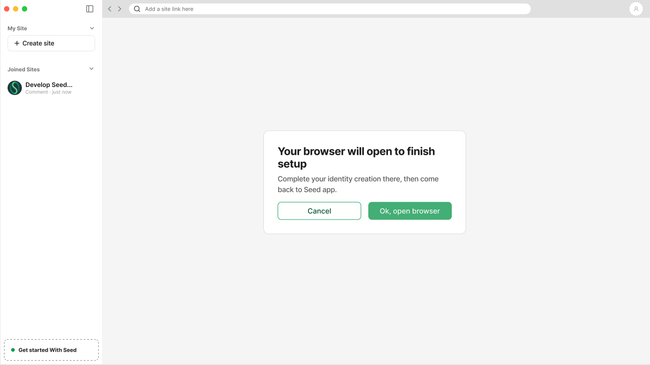
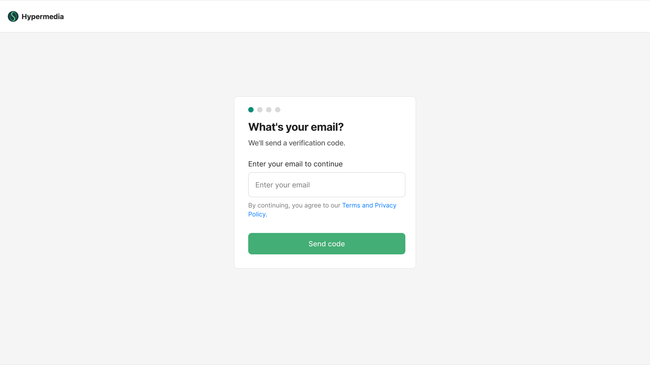
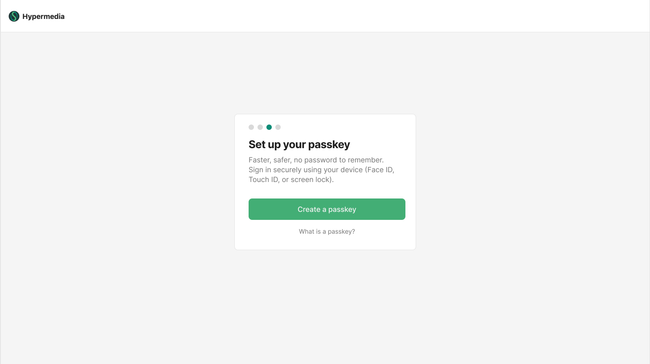
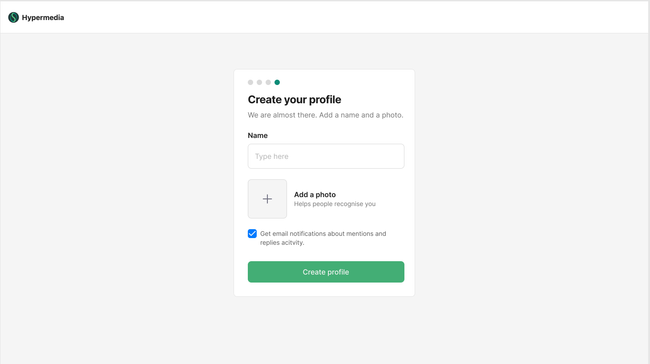
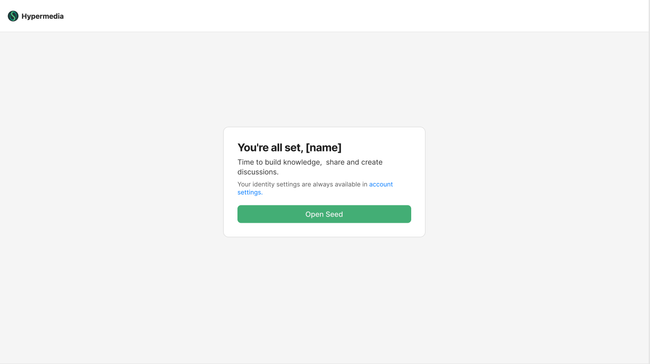
Final screen when user comes from (1)Join (2) Comment (3) Create account (4) Create site TBD
Acceptance Criteria
On first launch the app shows a welcome screen explaining what Seed is with three actions: Join a site, Create a site, and Sign in or create an account
Create a site flow will be added on next implementation when we have ready the new design
Develop Seed Hypermedia is pre-loaded in Joined Sites as a default
"Get started with Seed" item is pinned to the bottom of the sidebar and persists until user do one of the actions.
The account creation entry screen offers three options: Create identity in Hypermedia, Already have a Hypermedia identity, I have an identity from another site?
Tapping "Create identity in Hypermedia" opens the browser automatically at the Hypermedia setup URL — an intermediate screen to do this switch
The browser flow handles email and passkey setup — behaviour as defined in US-01
Profile screen requires a name and allows an optional photo. An email notification preference checkbox is shown on the profile screen, pre-ticked.
On browser completion, it returns to the app and continues to profile with an intermediate screen to do this switch -> "You're all set, [name]"
"Get started with Seed" sidebar item disappears once all steps are complete
Avatar in the top right updates to reflect the user's photo or initial
The identity is saved remotely by default — no decision is asked during onboarding
The user can change their identity storage preference at any time in Account Settings
Account Settings shows the user's connected devices, email, and current sync/storage status (remote)
No technical terms appear in the onboarding flow — "vault", "cryptographic", "local storage" are reserved for Account Settings where the user has chosen to manage advanced options.
Basic Flow
User opens the app for the first time — welcome screen with action cards
Taps "Sign in to Hypermedia or create an account"
Taps "Create identity in Hypermedia"
A step communicating the user the browser will be open to finish set up appears. If user cancels will go back to main screen.
Browser opens automatically → email → verify → passkey → browser closes
App returns to focus — profile screen
User adds name, optional photo, confirms notifications
"You're in, [name]" — onboarding complete
Action cards available — join a site or create a site
Edge Cases
⚠️ Browser fails to open → error shown in app with retry option
⚠️ User closes the browser mid-flow → returns to app, identity not yet created, "Get started" remains as a reminder
⚠️ User pastes an invalid URL in the join site field → inline error: "That doesn't look like a valid site link"
⚠️ User submits profile without a name → validation error shown, photo remains optional
⚠️ Unsupported image or oversized file uploaded → clear error with accepted formats and size limit
Do you like what you are reading? Subscribe to receive updates.
Unsubscribe anytime